
Designed for desktop
– Character is rigged to Epic skeleton to easily replace the default template character
– Rigged to default Epic skeleton- 9 additional material variations for alternate colors- tri count: 48,000- 2k textures. 4 materials per set. Each material set has diffuse, metallic, roughness, and normal maps.
TIP: To use custom animations that are also rigged to the UE4 Mannequin Skeleton:
- Navigate to the ZMech_v2 skeletal mesh in the Content Browser. Right-click on it and select Skeleton > Assign Skeleton.
- Find and select the UE4 Mannequin Skeleton that is using the animations you want. Click Accept.
- Save and open the ZMech_v2 skeletal mesh, go to the Animation tab, and change the Preview Mesh to ZMech_v2. You should be able to view all the animations available for the current skeleton.
NOTE: The previously available Source Files for creating custom animations in 3ds Max are no longer available, as the rig has been adjusted to match the Epic skeleton more precisely, and the old rig no longer works correctly.
专为桌面设计
-角色被操纵到史诗骨架,以轻松替换默认模板角色
-装备到默认史诗骨架-9个额外的材料变化的替代颜色-三计数:48,000-2k纹理。 每套4种材料。 每个材质集都具有漫反射、金属、粗糙度和法线贴图。
提示:使用也绑定到UE4人体模型骨架的自定义动画:
- 在内容浏览器中导航到ZMech_v2骨架网格体。 右键单击它并选择骨架>分配骨架。
- 查找并选择正在使用所需动画的UE4人体模型骨架。 单击接受。
- 保存并打开zmech_v2骨架网格体,转到动画选项卡,并将预览网格体更改为ZMech_v2。 您应该能够查看当前骨架可用的所有动画。
注意:以前用于在3ds Max中创建自定义动画的源文件不再可用,因为钻机已进行调整以更精确地匹配Epic骨架,并且旧钻机不再正常工作。
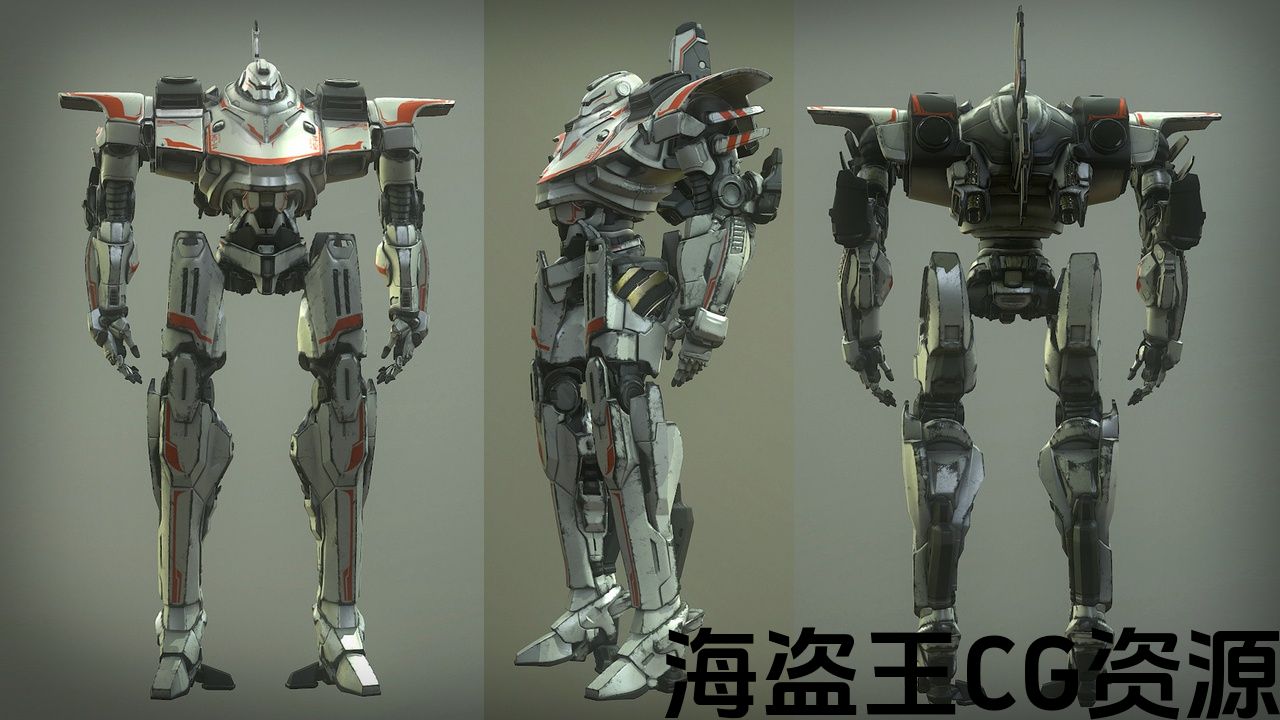
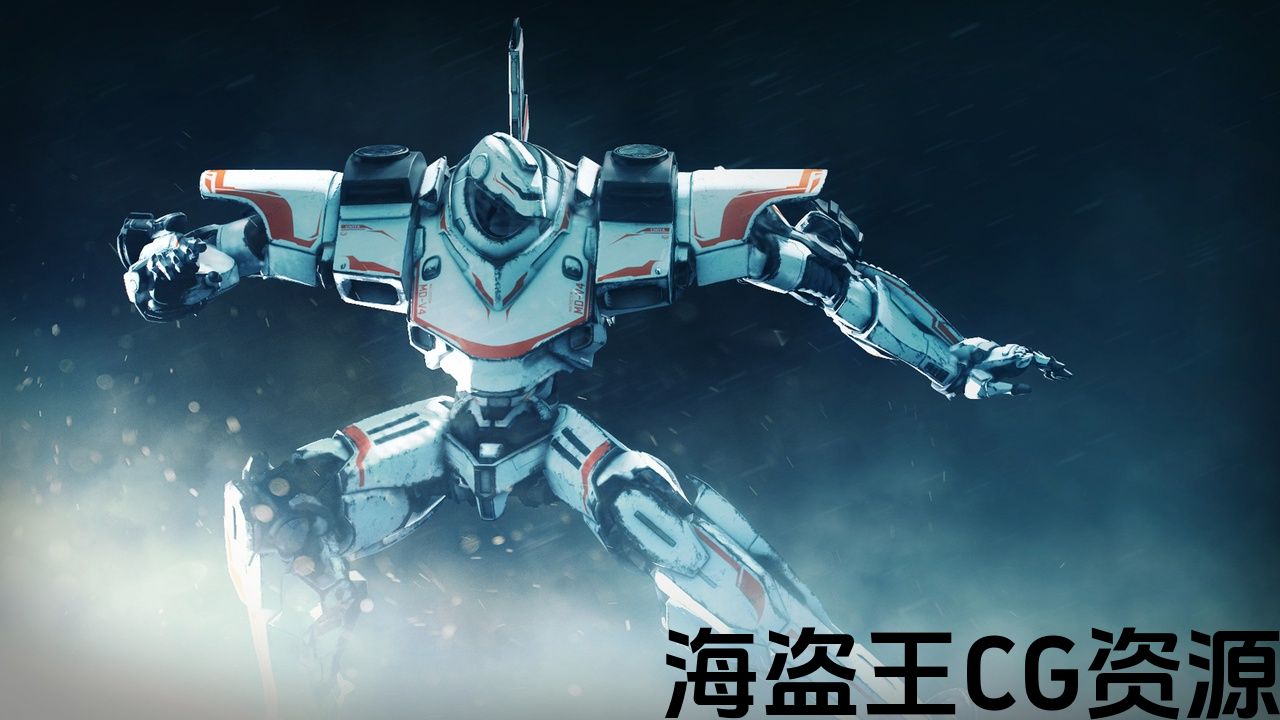
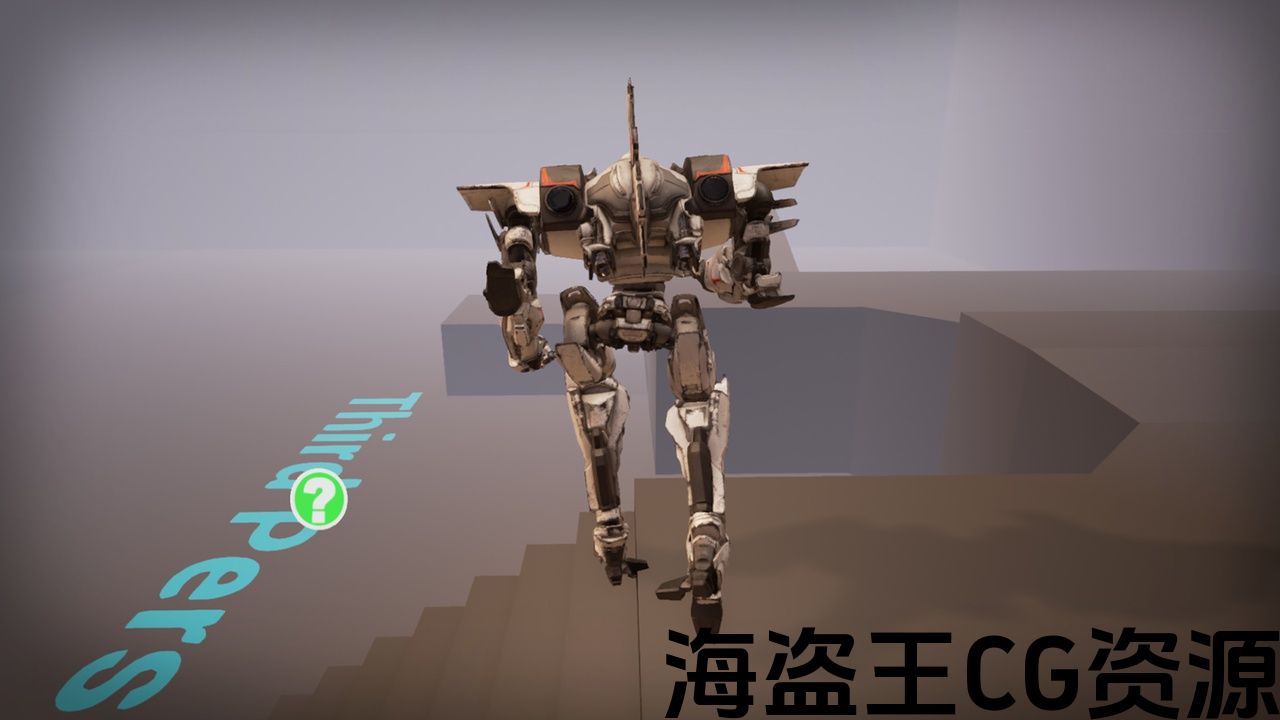
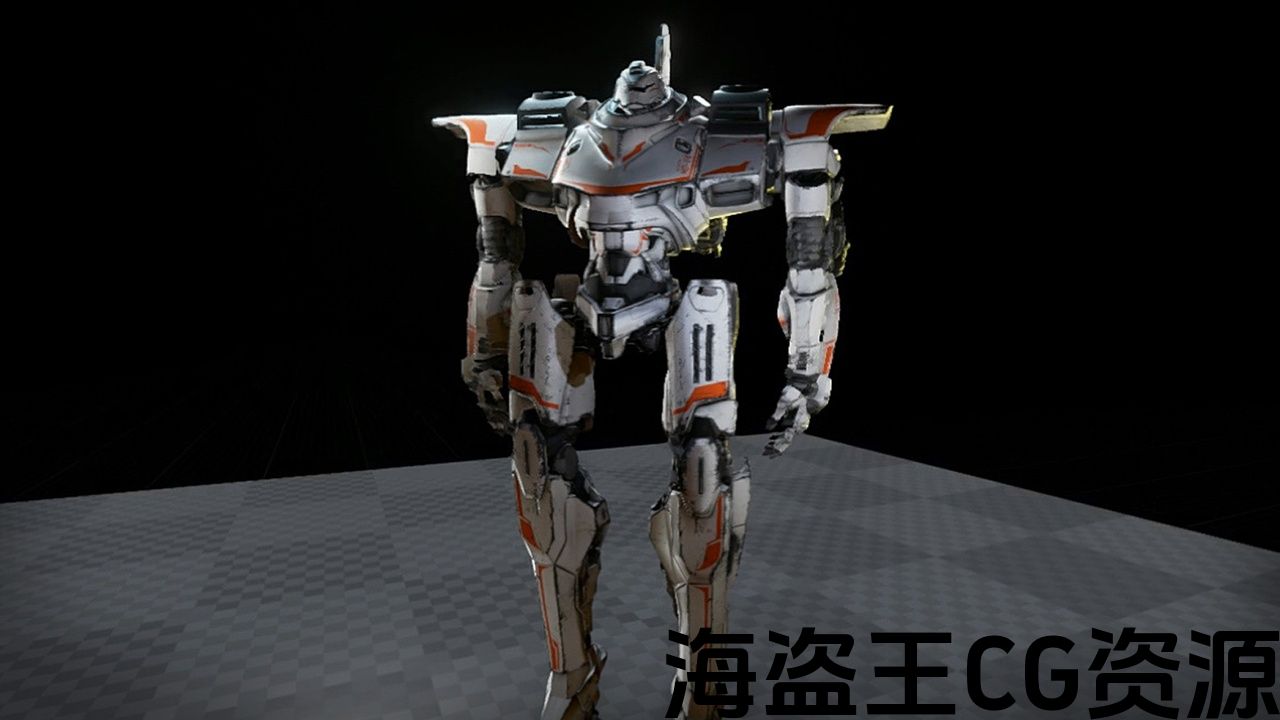
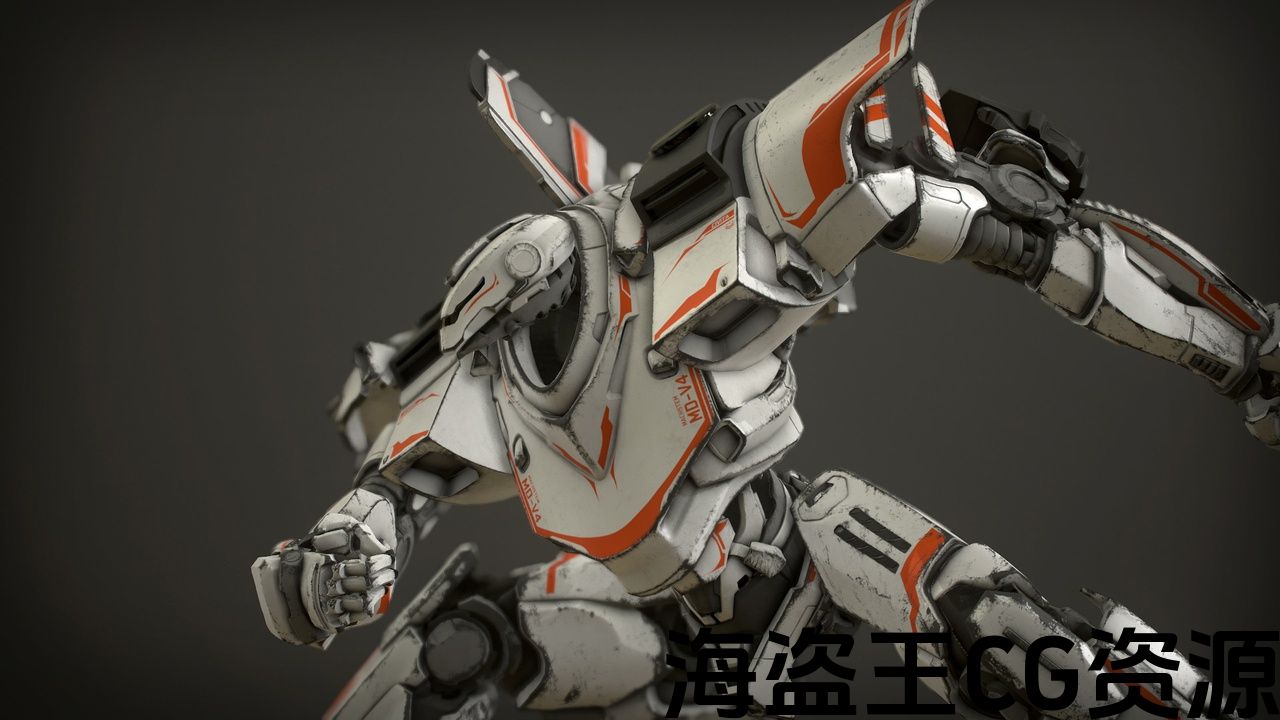
The Z-Mech giant robot character is rigged to the Epic skeleton to easily replace the third person blueprint template character with only a few clicks!
If animation stops working when you replace the template mannequin, or if the model is offset into the floor a little bit, try following the steps in the Skeletal Mesh Troubleshooting video.
Z-Mech巨型机器人角色被装配到史诗骨架上,只需点击几下即可轻松替换第三人称蓝图模板角色!
如果在替换模板人体模型时动画停止工作,或者模型稍微偏移到地板上,请尝试按照 骨架网格体故障排除视频.
评论(0)